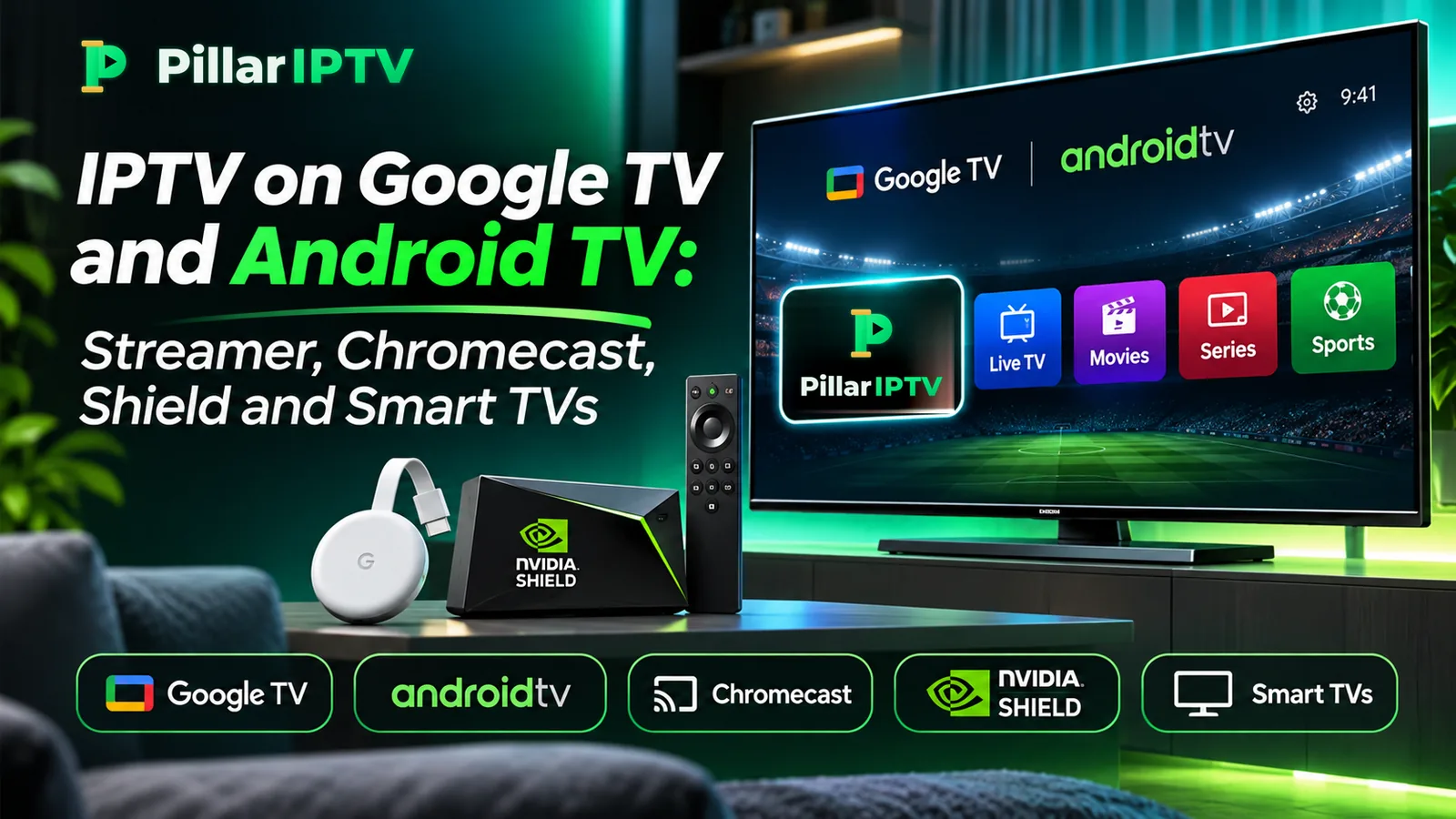
Google TV and Android TV power far more screens than most people realise. They run on Google's own streaming devices, on the Nvidia Shield, on countless Android boxes, and as the built-in system on televisions from Sony, TCL, Hisense, Philips and others. The good news is that they all share the same app store and the same strengths for live TV, so one setup works across the lot. This guide shows how to get Pillar IPTV running on any of them.
If your television is a Samsung or an LG, it runs a different system; our Samsung and LG smart TV guide covers those instead.
Is my device Google TV or Android TV?
Google TV is the newer interface built on top of Android TV, with personalised recommendations on the home screen. Android TV is the older, simpler layout. For IPTV the difference hardly matters: both use the Google Play Store, both run the same player apps, and the steps below apply to both. You will see this system on:
- Google TV Streamer and Chromecast with Google TV.
- Nvidia Shield TV and Shield TV Pro.
- Android TV boxes from many brands, including some sold by internet providers.
- Televisions from Sony, TCL, Hisense, Philips and others that list Google TV or Android TV in their specifications.
Why this platform suits IPTV so well
- The widest choice of player apps, including TiviMate, which many viewers consider the best live-TV player available.
- A proper remote with a d-pad, so channel surfing feels like a cable box.
- Frame-rate matching on many devices, which makes sport look smoother.
- Ethernet on several devices, either built in or through an adapter.
Step 1: choose a player app
PillarIPTV works with any player that accepts an Xtream Codes or M3U login, so you are free to choose. Two stand out on this platform:
- TiviMate: built specifically for TV screens, with a cable-style programme guide grid, quick channel switching, favourites and catch-up where channels support it. The free version covers the essentials; a paid premium tier adds extras such as multiview, recording and multiple playlists.
- IPTV Smarters: a simpler layout that splits live TV, films and series into separate sections. Handy if your household watches a lot of on-demand content or already uses it on phones.
Our player app comparison explains the trade-offs in more detail. You can install two and keep the one you prefer; your subscription is not tied to either.
Step 2: install it
Start with the Google Play Store. On the home screen, open the search (or Apps, then Search for apps), type the player's name and choose Install. Most popular players are listed there.
If a player is not available in the Play Store in your country, you can install it from the developer's official website using a downloader app. First allow the device to do so:
- Install a downloader app from the Play Store.
- Open Settings, then System, then About. Scroll to the Android TV OS build entry and press select on it seven times until a message says you are now a developer.
- Go back to Settings, then Apps, then Security & restrictions (on some devices: Apps, Special app access), choose Unknown sources and allow the downloader app.
- Open the downloader, enter the download address shown on the player developer's own website and install the app.
Menu names vary a little between devices and versions, but the steps are the same. Only use addresses from the developer's official site, and switch Unknown sources off again afterwards if you like.
Step 3: sign in
Open the player and choose the Xtream Codes option (in TiviMate: Add playlist, then Xtream codes). Enter the server address, username and password from your login message exactly as sent. Typing with a remote is slow, so check every character; a missing port number or an extra space is the most common reason a first login fails. Our explainer on IPTV login details shows what each part looks like.
The first launch downloads the channel list and programme guide, which can take a minute or two. After that, the app opens in seconds.
Step 4: make it feel like a TV box
- Pin the player to your home screen: on Google TV, highlight it under Your apps, hold select and choose Move or Add to favourites. On Android TV, add it to the Favourite apps row.
- Set the player to open on the last channel you watched, if it offers that option.
- Build a favourites list and hide channel groups you never watch, so the list stays short.
- Check the time zone under Settings, System, Date & time. The programme guide relies on it.
Device-specific tips
Google TV Streamer and Chromecast with Google TV
The Google TV Streamer has a built-in Ethernet port; use it if the router is nearby. The Chromecast with Google TV has no port, but a USB-C power adapter with Ethernet adds a wired connection. Chromecast storage is limited, so keep only the apps you use and clear player caches if it starts to slow down.
Nvidia Shield TV
The Shield is one of the most capable boxes for IPTV, with plenty of power for 4K channels and multiview, and built-in Ethernet. Its AI upscaling can sharpen HD channels on a 4K television; try it on and off with a sports channel and keep whichever looks better to you.
Sony, TCL, Hisense and other Google TV televisions
Built-in Google TV works well, but TV processors are usually slower than a dedicated streamer and storage fills up quickly. If menus feel sluggish, uninstall unused apps, clear the player's cache, and consider a separate streamer if the TV is a few years old.
Android TV boxes
Quality varies widely. Boxes with certified Android TV or Google TV have the Play Store and regular security updates; uncertified boxes may not. Prefer certified models, and keep the system updated.
Settings that make sport look better
- Match content frame rate: many devices offer it under Settings, Display & Sound, Advanced display settings (names vary). Set it to match automatically so 50 fps and 60 fps sport plays without judder.
- Choose the right quality: Full HD needs roughly 15 to 20 Mbps and 4K needs 25 Mbps or more, per screen. A smooth Full HD picture beats a 4K picture that stutters.
- Hardware decoding: in the player's settings, try hardware and software decoding with a busy sports channel and keep whichever plays more smoothly.
- Turn off the TV's motion smoothing for sport if you see artefacts around fast-moving players.
Troubleshooting on Google TV and Android TV
A few problems come up again and again on this platform. Most take a minute to fix:
- The player is missing from the Play Store: availability differs by country and device. Install it from the developer's official website with a downloader app, as described in Step 2.
- "App not installed" when sideloading: usually not enough storage, or a download meant for phones rather than TVs. Free some space and download the Android TV version from the developer's site.
- The guide is empty or shows the wrong times: reload the guide in the player settings, then check the device time zone under Settings, System, Date & time.
- Channels freeze but the menus are fine: test the same channel on a phone on the same network. If the phone is smooth, move the device to Ethernet or 5 GHz Wi-Fi and lower the quality one step.
- The remote feels laggy in the player: restart the device, close apps running in the background and clear the player's cache. Ageing TVs often benefit from a separate streamer.
- Playback stops when the screensaver starts: in Settings, look for Ambient mode or Screen saver and lengthen the start time, or check the player keeps the screen awake during playback.
Keeping it running smoothly
Like any small computer, a streaming device benefits from a weekly restart and some free storage. If something stops working after a system or app update, our guide to IPTV that stopped working after an update walks through the usual causes, such as Unknown sources being switched off again. For stuttering or freezing, the IPTV freezing fixes cover the network side step by step.
Screens and plans
Each device playing at the same moment uses one connection. A Shield in the lounge and a Chromecast in the bedroom playing together need a two-screen plan: $115 for a year, about $9.58 a month. The multiple connections page explains the options. If you have not tried the service yet, request the free 24-hour trial and set it up on your device during a busy evening.
Frequently asked questions
Can I install IPTV on Google TV?
Yes. Install a player such as TiviMate or IPTV Smarters from the Google Play Store, sign in with your Xtream Codes details, and the channels load.
What is the best IPTV app for Android TV?
TiviMate is the most popular choice for its cable-style guide. IPTV Smarters suits households that watch a lot of on-demand content.
Does Chromecast with Google TV work for IPTV?
Yes. Keep storage free, use 5 GHz Wi-Fi or a USB-C Ethernet adapter, and it handles live channels well.
How do I enable unknown sources on Google TV?
Turn on developer mode by pressing select seven times on the Android TV OS build entry in Settings, System, About. Then allow your downloader app under the Unknown sources setting in Apps.
Is the Nvidia Shield good for IPTV?
Very good. It has the power for 4K and multiview, built-in Ethernet and AI upscaling that can sharpen HD channels.