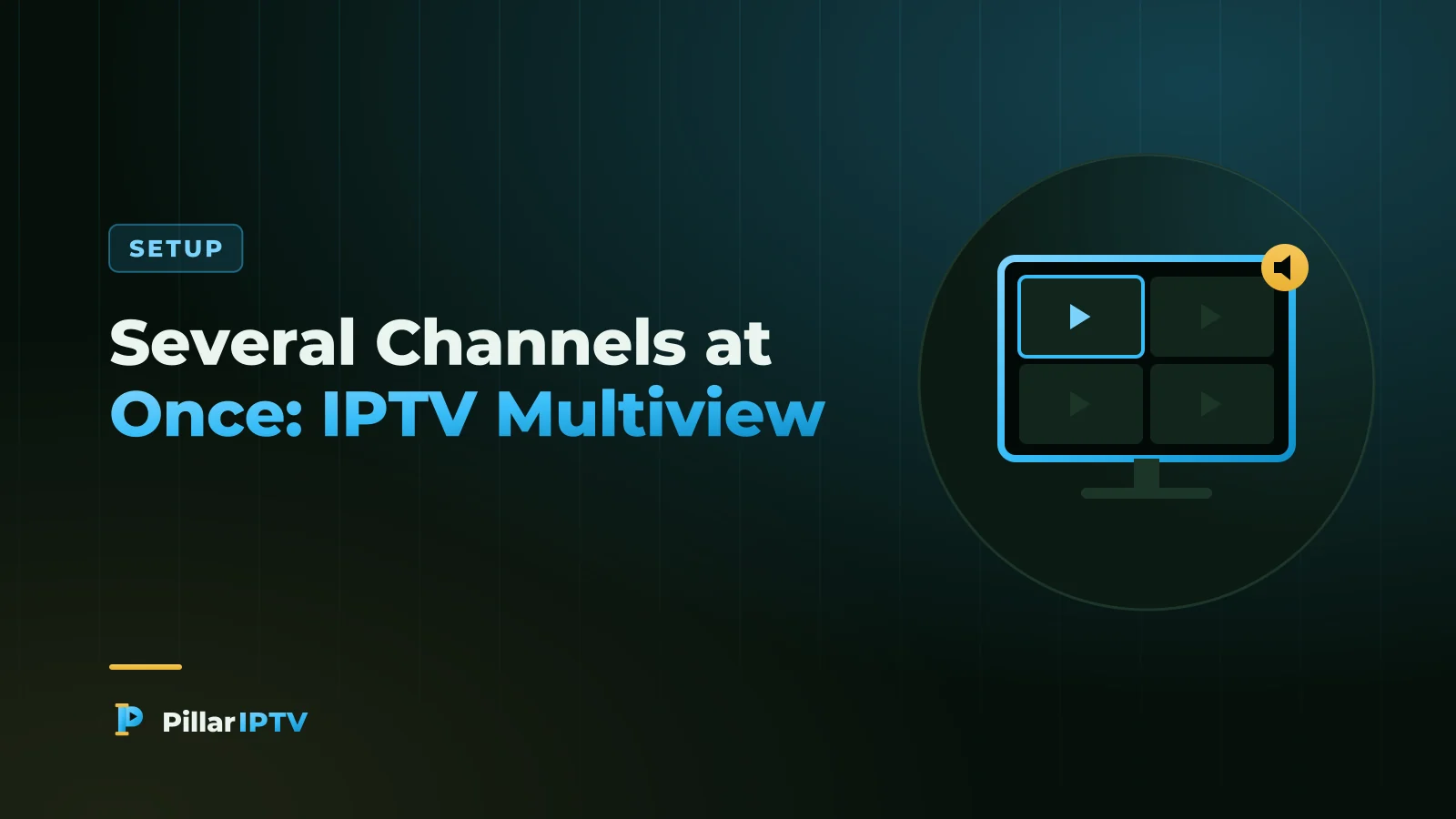
On the last day of a league season, or when two big games kick off together, one picture is not enough. Some player apps can split the screen and show two or more live channels side by side, and with Pillar IPTV the only thing that limits how many is the number of connections on your plan.
This guide explains how multiview works and what it needs. If you are still choosing a player, our player app comparison covers the main options first.
How multiview works
Multiview is not one stream showing several pictures. The player opens a separate live stream for each tile and arranges them on screen, usually as two side by side or four in a grid. You choose which tile plays sound, and you can usually make any tile full screen with one press.
That has two consequences. Each tile uses its own share of your internet speed, and each tile counts as a separate connection on your subscription.
The connection rule
Because every tile is its own stream, two tiles need a plan with at least two connections, and three tiles need three. If someone else in the house is already watching on another device, that counts too. For a household that wants a two-tile match screen, the 12-month two-screen plan is $115, about $9.58 a month; three screens cost $162 for the year. The extra screens page explains the plans.
If a tile refuses to start while the others play, you have most likely hit your connection limit.
Players that offer it
- TiviMate (Android TV, Google TV, Fire TV): multiview is part of its paid premium tier and supports several layouts.
- IPTV Smarters: some versions include a multi-screen mode on Android devices and boxes.
- Other players: features change with updates, so check the current version’s settings or description before relying on it.
What your device and internet need
- A capable device: decoding several live streams is hard work. Recent Fire TV Stick 4K models, Android TV boxes with good processors and the newest streaming devices cope best; older or entry-level sticks may stutter.
- Speed for every tile: roughly 10 Mbps for each HD tile and 15 to 20 Mbps for each Full HD tile. Two FHD tiles need around 30 to 40 Mbps before anyone else uses the line.
- A wired connection if possible: multiview is where Ethernet or a powerline adapter pays off most.
- Lower quality for extra tiles: choose the HD version of channels you are only glancing at, and keep FHD for the main one.
Setting it up for a match day
A little preparation makes the big day painless:
- Add every channel you will need to your favourites the day before.
- Open multiview and pick a layout: two tiles side by side are easiest to follow on a normal-size TV.
- Assign channels to tiles and choose which one plays sound.
- Test it at the same time of day as the event, so you see the real evening load on your connection.
- Close other streams in the house, or make sure your plan has enough connections for everyone.
When multiview struggles
If tiles freeze one after another, the device or the connection is running out of headroom. Drop one tile to HD, reduce the number of tiles, or move to a wired connection. Our guide to IPTV freezing fixes works through the rest. Running two separate devices, such as the TV and a tablet, is a simple alternative if your main device cannot handle a split screen.
Frequently asked questions
Does multiview use more than one connection?
Yes. Each tile is a separate live stream, so two tiles need two connections on your plan and three tiles need three.
Which IPTV app has multiview?
TiviMate offers multiview in its premium tier on Android TV, Google TV and Fire TV devices. Some versions of IPTV Smarters include a multi-screen mode as well.
Can a Fire TV Stick handle multiview?
Recent 4K models usually manage two tiles, especially on a wired or strong 5 GHz connection. Older sticks may struggle, so test before a big event.